
3. How do I receive my order?
Navigation between our mobile and desktop versions seems similar, but could feel different at times. Here is a quick guide to finding your order in both versions.
Navigating the mobile version
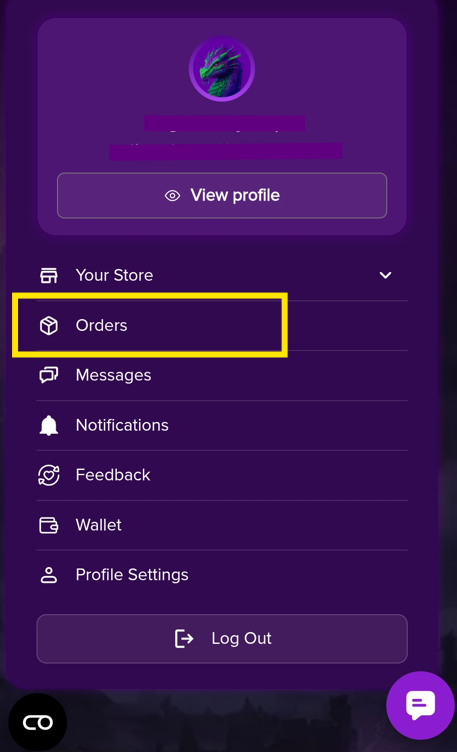
Log in and select Orders:
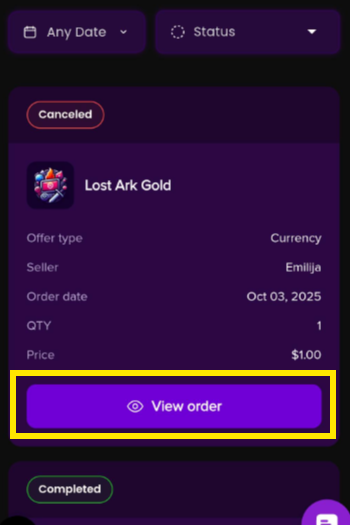
If you have multiple orders, find and select the relevant one to enter the order's page and click the "View order" button:
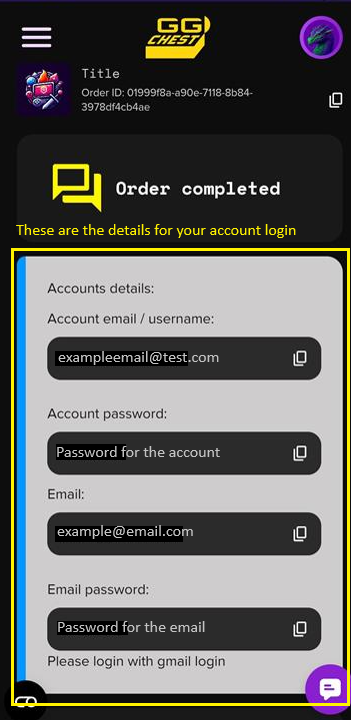
If it's auto delivery, you'll see such a screen with the details. Check below for any further instructions from the seller. Follow them carefully:
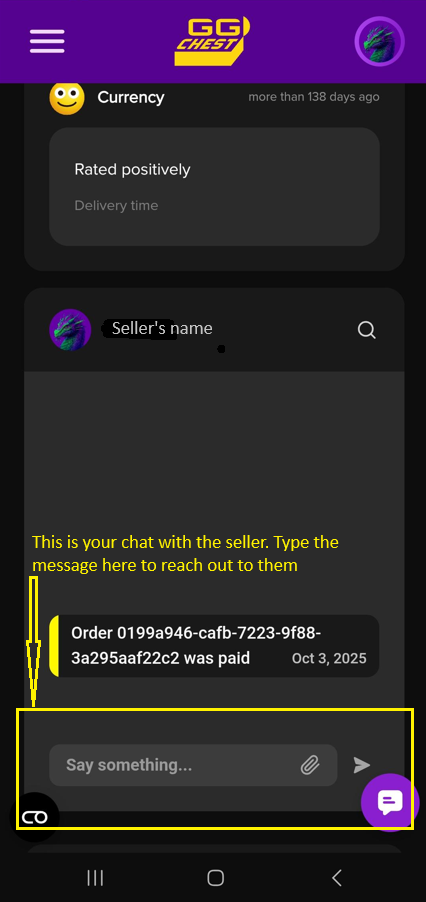
If your delivery is manual, your details will appear in the order chat. Check the chat below and message the seller:
Navigating the desktop version
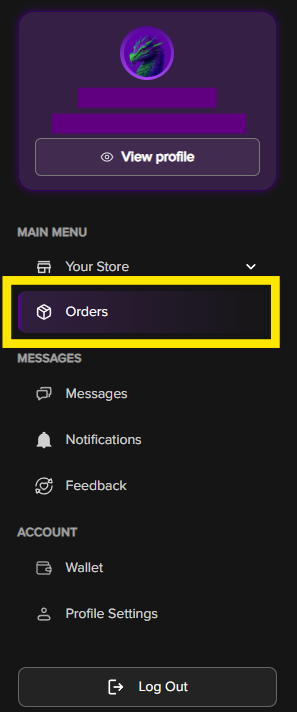
Log in and select Orders
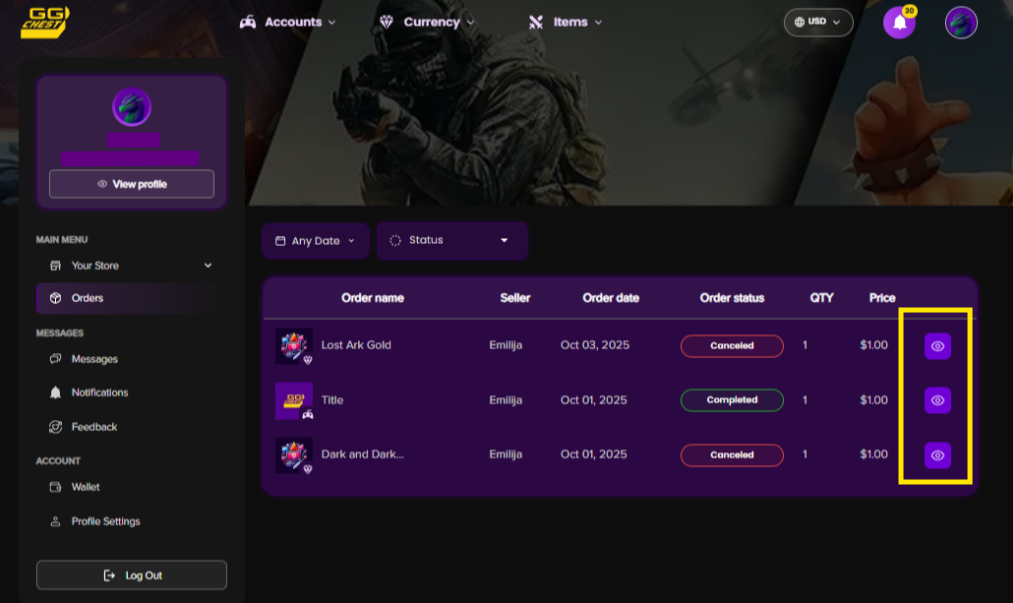
If you have multiple orders, find and select the relevant one to enter the order's page:
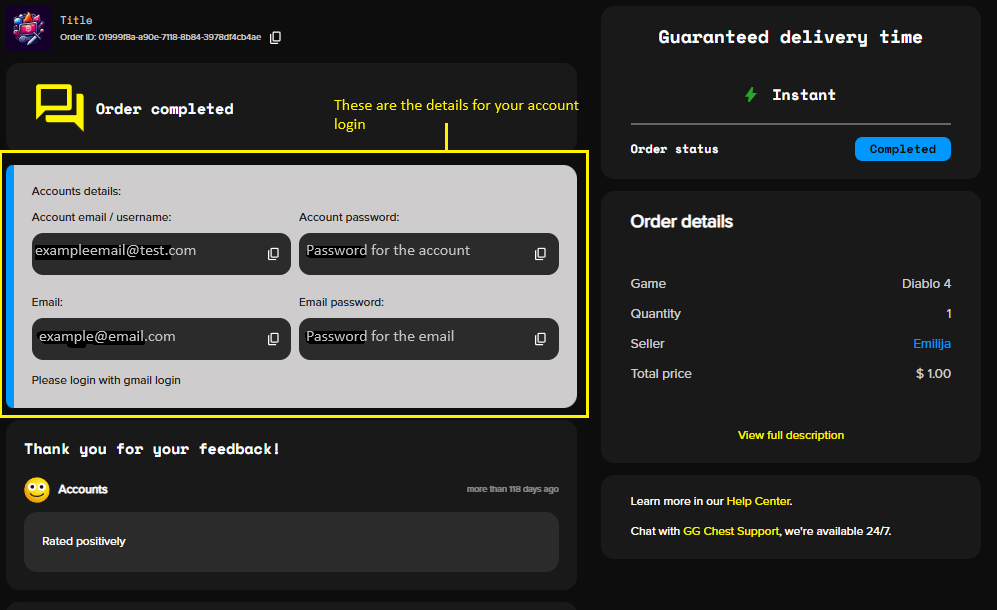
If it's auto delivery, you'll see such a screen with the details. Check below for any further instructions from the seller. Follow them carefully:
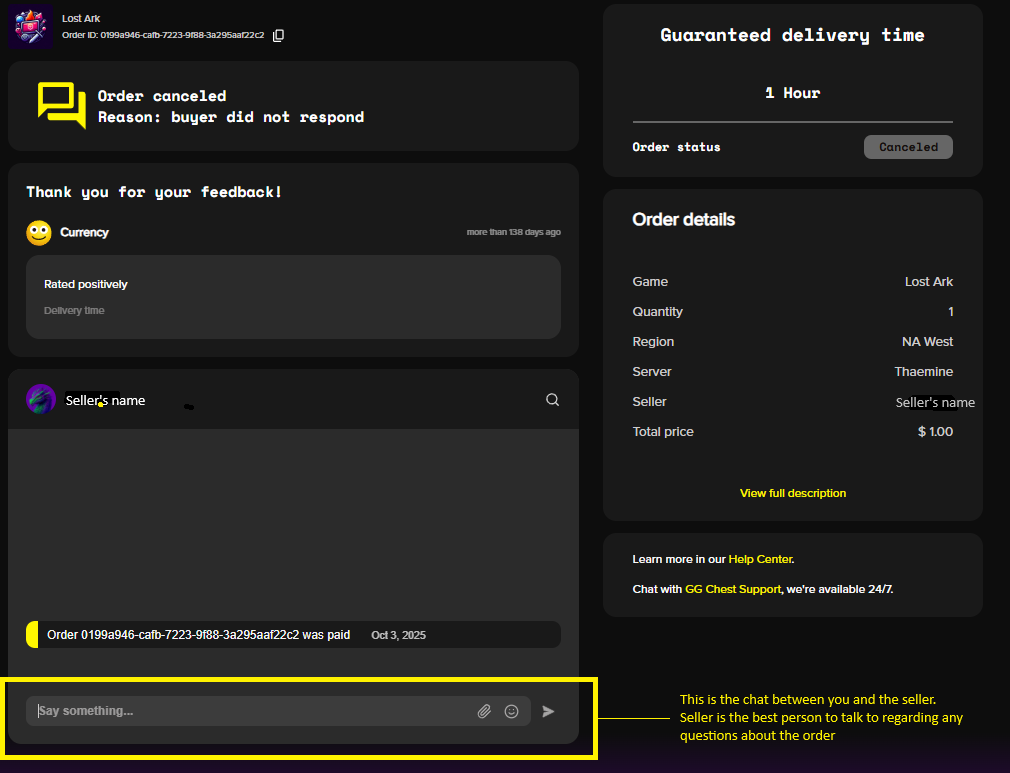
If your delivery is manual, your details will appear in the order chat. Check the chat below and message the seller:
If you run into any issues, our support team is available 24/7. Reach out via live chat support, or email us at support@ggchest.com.